


How to Set Up Long-Term AI Memory With AI Context Flow in 5 Minutes
By Hira • Feb 18, 2026
Every one of us regularly uses AI agents like ChatGPT, Gemini, and Claude. Today, 1B+ people are using AI agents, but none of them have a long-term memory to remember who you are and what you need.
You switch tabs to get an answer. Then switch back to keep working. Then switch again because the next question just came up. And every single time, you start from scratch – re-explaining who you are, what you’re working on, and what you need.
What if your AI could follow you instead?
Not just across chat platforms, but across every website you visit. So when you’re reading a research paper, your AI already knows your project. When you’re browsing a competitor’s site, it already knows your brand. When you’re on any webpage, your answers are right there – no tab switching, no re-explaining, no starting over.
That’s exactly what AI Context Flow now does. Our browser extension lets you build your context once and use it everywhere – across all major AI platforms and every corner of the internet through our new AI Sidebar.
Voted #1 Product of the Day and #1 Productivity Tool of the Week on Product Hunt, with thousands of users saving 8+ hours a week.
This quick guide shows you how to set it up in less than 5 minutes.
More of a visual learner? Check out our detailed demo video
Step 1: Install AI Context Flow From the Chrome Web Store
Install AI Context Flow directly from the Chrome Web Store. In seconds, you’ll have an AI memory layer that follows you across every conversation and every website, carrying your saved context wherever you go.
Memory buckets are the foundation of AI Context Flow. Think of them as organized folders for your knowledge – one per project, client, or topic.
To create your first bucket, you have three options:
Go to any supported AI platform & save an important conversation into a new bucket
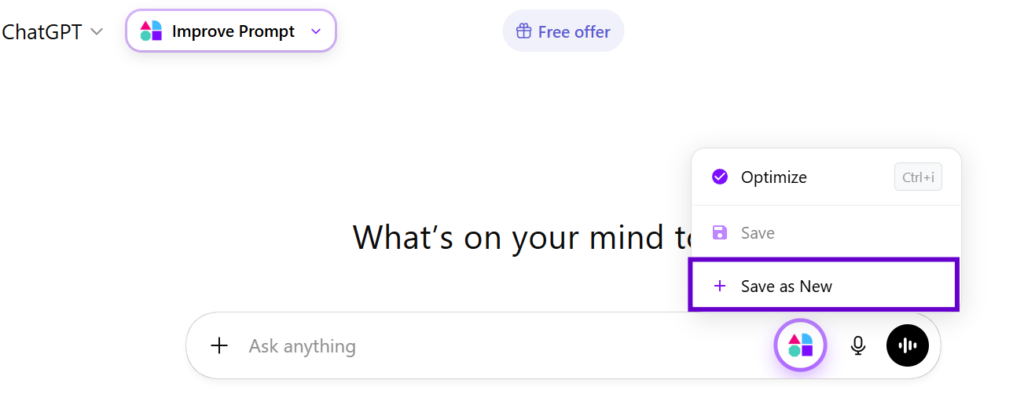
Save AI chat to memory
Open the extension and create a bucket from there
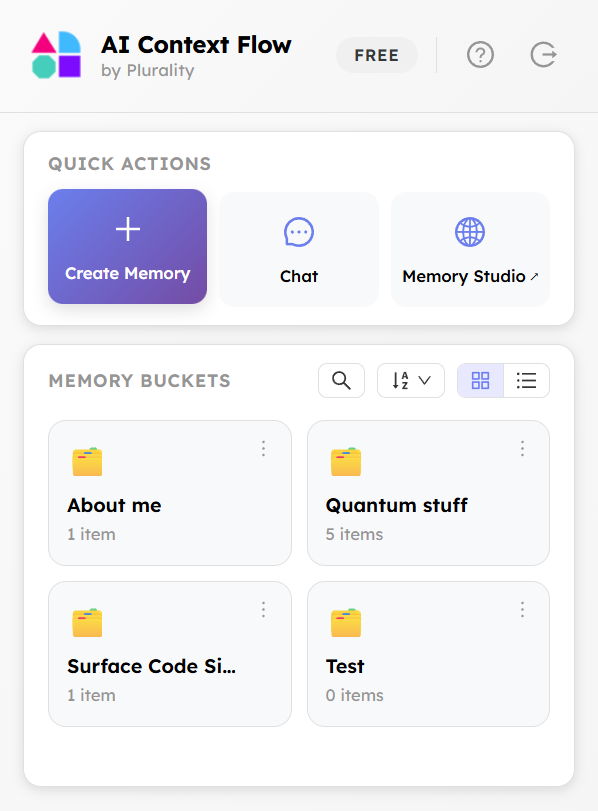
Create memory bucket from extension
Login to memory studio and create memory buckets directly in the dashboard
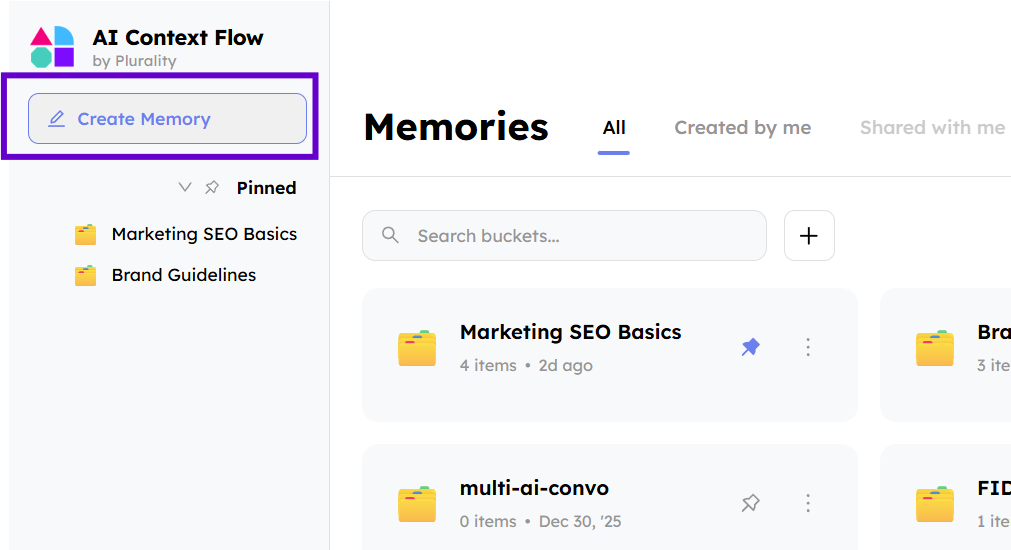
Create memory at the memory studio
Step 3: Use Your Context Across AI Platforms
This is where it gets powerful. Open any supported AI platform – ChatGPT, Claude, Gemini, Grok, or Perplexity – select your memory bucket from the dropdown, and click “Optimize Context.” You can also press Ctrl + i to instantly optimize any prompt using your stored memory.
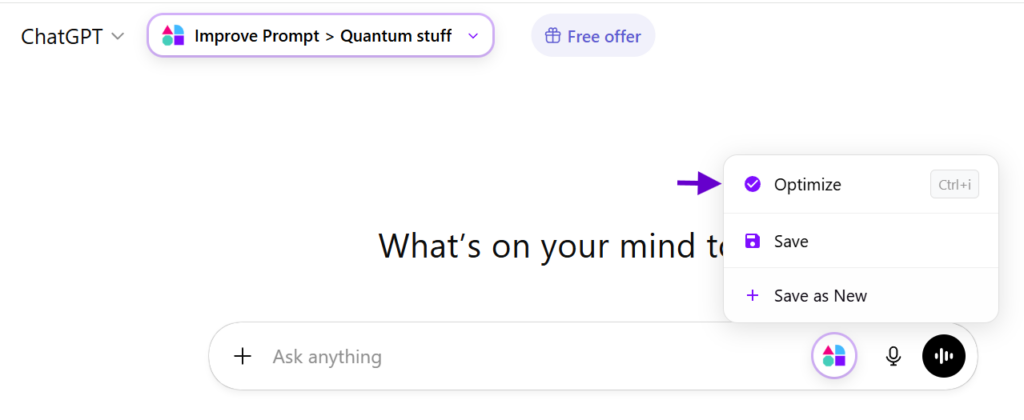
Optimize brings in required context
Your saved knowledge is now injected into the conversation. No re-explaining. No copy-pasting. The context you built on ChatGPT is instantly available on Claude, Gemini, or any other platform.
Step 4: Save Information From Any Website
AI Context Flow goes beyond AI platforms. You can build your knowledge base from anywhere on the web.
How it works:
Highlight any text on any webpage
Click “Save to Memory”
Choose which bucket it belongs to
That information is now part of your AI context
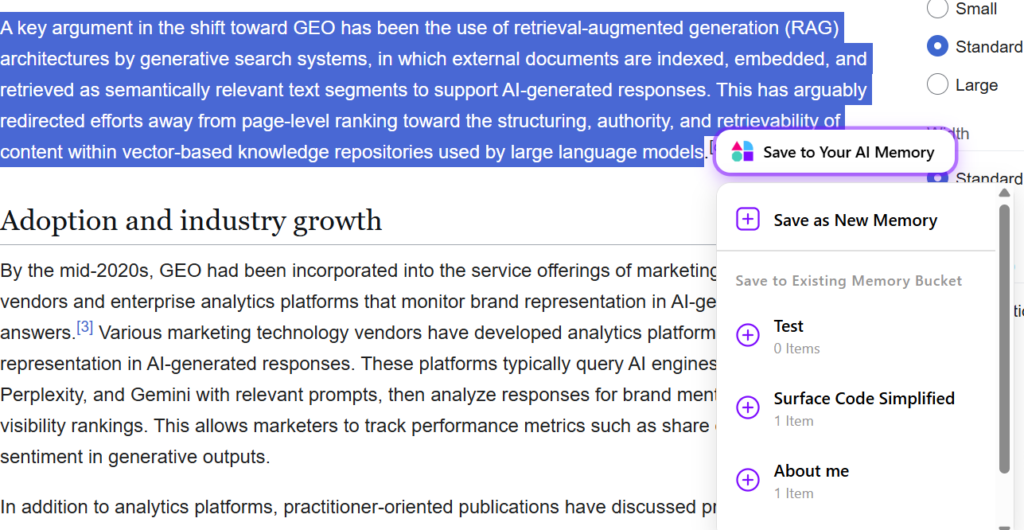
Save highlights from any website
Reading a Wikipedia article for research? Save the relevant section. Found a useful blog post? Save the key points. Your knowledge base grows as you browse.
Step 5: Refine & Curate Your Memory in Memory Studio
Memory Studio is your full knowledge management dashboard. Visit app.plurality.network to manage everything you’ve saved.
Chat with your memories locally (no data sent to servers)
Keep your context fresh and accurate as projects evolve
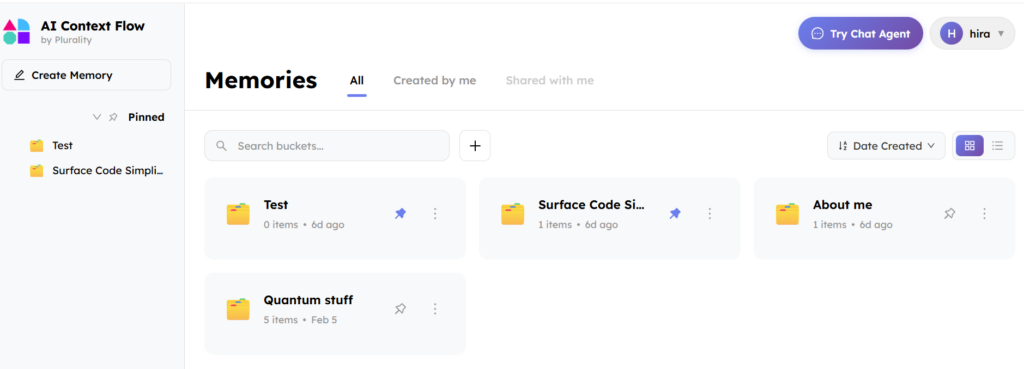
Memory curation in memory studio
Step 6: Switch Between 30+ AI Models
Inside Memory Studio, you can chat with your saved memories using Pluto – our built-in AI agent with access to 30+ models including Claude Opus 4.5, GPT-4, and Gemini.
Why this matters:
No more juggling between browser tabs
Use the best model for each specific task
All conversations happen with your full context intact
Chats are local, private, and never used for training
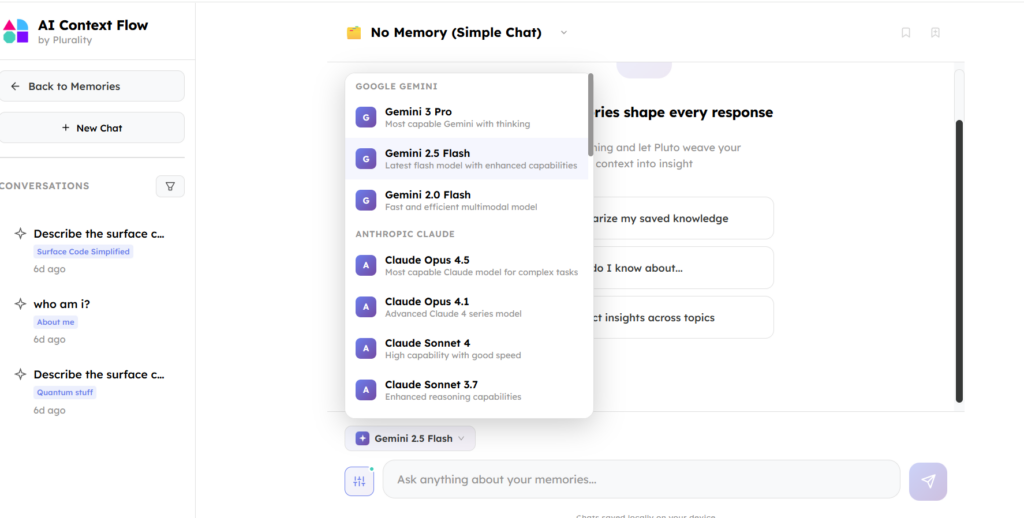
AI model switcher
Step 7: Use the AI Sidebar on Every Website
his is our most powerful new feature. Pluto Sidebar turns every website into a contextual AI workspace.
How to activate:
Go to any website
Open the AI Context Flow sidebar
Toggle “Use Current Website” on (off by default for privacy)
Ask Pluto anything about the current page
What you can do:
Summarize any article or webpage
Extract key facts from what you’re reading
Cross-reference web content against your saved memory
Save the conversation to your permanent memory with one click
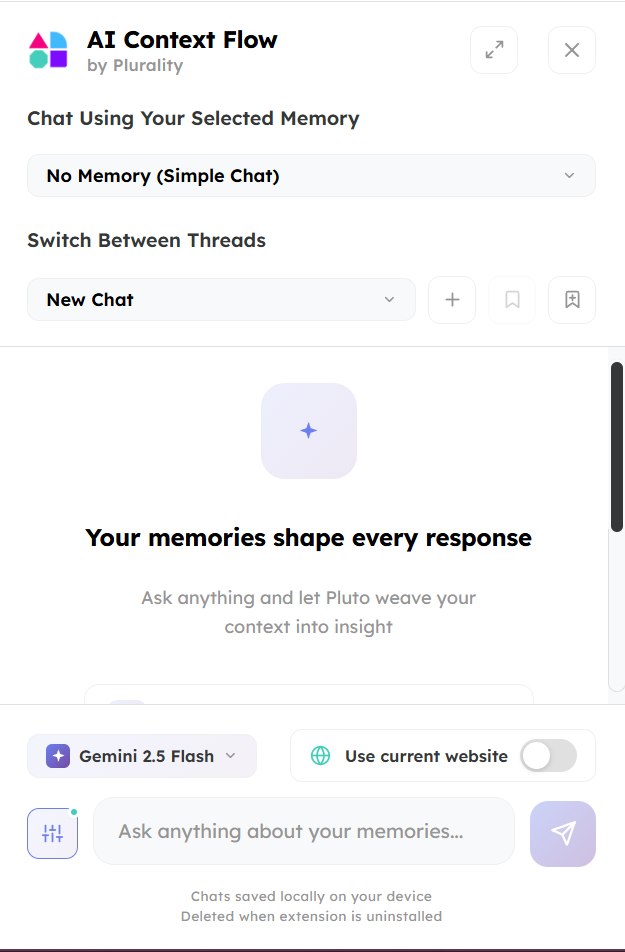
AI Sidebar
Your AI memory used to live in chat windows. Now it travels with you across the entire internet.
Context Gathering and Modification Options
So, how can you grow your personal knowledge base and keep it fresh and relevant?
1. Save AI Chats Had an insightful chat on Gemini? Save to memory! Did Claude give you a great strategic advice? Add to memory! Did ChatGPT improve your marketing copy and gave you suggestions? Put in your memory! Anything saved from one platform is instantly available on all the other supported platforms.
2. Add Files or Paste Text Upload source material or paste notes to strengthen your memory base. Supports .txt, .json, .docx, .md, and .pdf. Can add through the extension interface or through the memory studio.
3. Highlight From Anywhere Select and save text from any webpage directly into your memory bucket in one click.
4. Delete Individual Context Remove specific sources from any bucket to keep your knowledge accurate and up to date. Can filter, sort and view specific memories in the memory buckets from both the extension and the memory studio.
5. Chat With Your Memory Use Pluto inside Memory Studio to interact with your saved knowledge directly and find out gaps. All chats are local and private.
Supported AI Platforms
AI Context Flow currently works with ChatGPT, Claude, Gemini, Grok, and Perplexity. More integrations are coming soon.
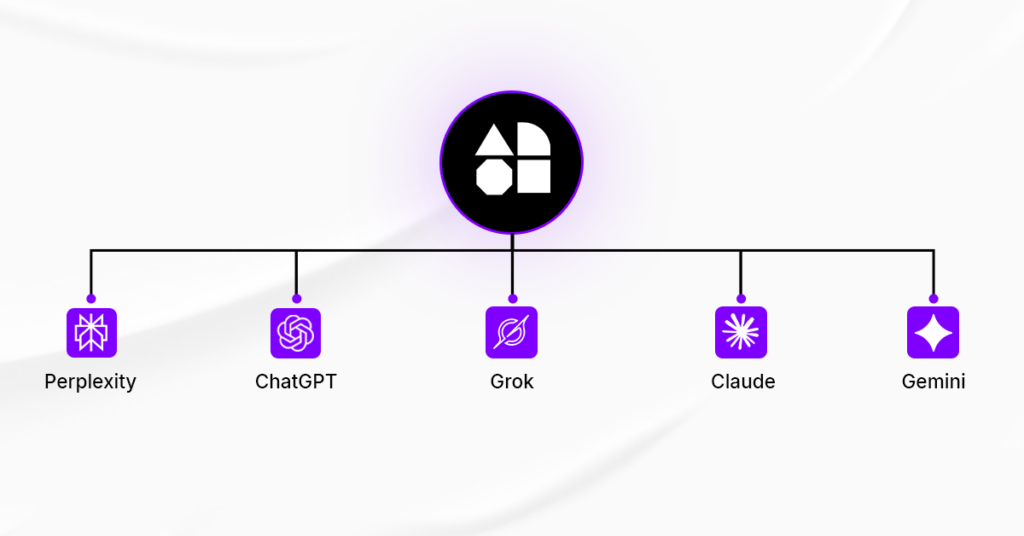
Supported AI platforms – ChatGPT, Claude, Grok, Gemini and Perplexity
1. Pluto AI Sidebar Available on every website. Summarize, analyze, and cross-reference web content against your saved memory in real time.
2. 30+ Model Switcher Switch between Claude Opus 4.5, GPT-4, Gemini, and 30+ other models directly inside Memory Studio without losing your context.
3. Improved Cross-Platform Context Faster and more reliable context injection across all supported AI platforms based on user feedback.
4. Enhanced Web Highlighting Save content from any website into your memory in one click. Build your knowledge base as you browse.
5. Local Chat in Memory Studio Chat with your memories privately. Conversations are stored locally, never sent to our servers, and never used for training.
6. Multi-Language Context Optimize prompts in multiple languages for a consistent experience across global workflows.
Feedback from Current Extension Users
Amazing extension; helps you with your requests. 100% recommend it.
– retep
Amazing and very useful tool, if you us AIs as chatGPT or DeepSeek. It will increase your productivity with prompts and contexts in several times!
– Vladimir Understanding
Finally, an tool that remembers what I need, saves me so much time and optimizes every prompt.
– Game Top
Finally, an AI extension that truly focuses on the user and actually solves real problems. Love it!
– Vivek Shah
Frequently Asked Questions (FAQ) about AI Context Flow
Does AI Context Flow work across multiple AI platforms?
Yes. It currently works with ChatGPT, Claude, Gemini, Perplexity, and Grok, with more integrations coming soon.
Does the AI Sidebar work on every website?
Yes. The Pluto Sidebar can be activated on any website. The “Use Current Website” toggle is off by default on every page to protect your privacy – you control which pages it reads.
Does the extension share my data with third parties?
No. All user data is encrypted, stored securely, and never shared with third-party services. Chats inside Memory Studio are local and never sent to our servers.
Can I switch between AI models?
Yes. Pluto inside Memory Studio gives you access to 30+ AI models including Claude Opus 4.5, GPT-4, and Gemini – all with your full context intact.
Do I need a subscription for more memory buckets?
There is a free tier available. For higher limits, there is a price. See our pricing page for more details.
Can I delete specific saved contexts?
Yes. You can remove individual sources or entire memory buckets directly from your Memory Studio dashboard.