



How to Switch from ChatGPT to Claude Without Losing Your Context
By Hira • March 2, 2026
You’ve decided to switch from ChatGPT to Claude – and the biggest risk isn’t the switch itself, it’s leaving your AI context and memory behind. Maybe you want to try out Claude’s long-form content, or you are a part of QuitGPT movement, either way you are here.
Everything ChatGPT knows about you – your writing style, your projects, your preferences, the shortcuts that make your prompts work – lives inside OpenAI’s systems. Claude cannot access any of it. On day one, it knows nothing about you.
So, how do you switch from ChatGPT to Claude?
This guide fixes that. Two methods: the manual way (free, takes under an hour) and the automated way using AI Context Flow (takes five minutes, works across every AI tool you use). Jump to whichever fits you best.
The Core Problem: Your AI Context Does Not Travel
ChatGPT and Claude store your data in completely separate systems. There is no automatic sync between them. The moment you open Claude, you are starting from zero.
For professionals using multiple AI tools, this costs an average of five hours per week spent repeating context across platforms. Across a year, that is 200+ hours explaining the same project backgrounds and preferences over and over.
The fix is to treat your AI context as something that belongs to you – not to any platform. Here is how.
Method 1: The Manual Transfer, Step by Step
This method is free and works for anyone. Budget 30 to 60 minutes.
Step 1: Extract Your Context from ChatGPT
With the following prompt you will get some information, but not everything. But since conversation history is mostly noise, what we focus on is your custom instructions, your best prompts, and the background on any active projects.
Start by running this prompt directly in ChatGPT:
I am switching to a new AI assistant. Write a structured User Context Document for me. Include: my writing style and tone preferences, my professional background, any recurring projects or goals we have discussed, how I like information presented, and my custom instructions verbatim. Format it as a clean Markdown document with clear section headers.
Alternatively, you can also use this prompt that is provided by anthropic for memory transfer.
I’m moving to another service and need to export my data. List every memory you have stored about me, as well as any context you’ve learned about me from past conversations. Output everything in a single code block so I can easily copy it.
Format each entry as: [date saved, if available] – memory content.
Make sure to cover all of the following — preserve my words verbatim where possible:
Instructions I’ve given you about how to respond (tone, format, style, ‘always do X’, ‘never do Y’).
Personal details: name, location, job, family, interests.
Projects, goals, and recurring topics.
Tools, languages, and frameworks I use.
Preferences and corrections I’ve made to your behavior.
Any other stored context not covered above. Do not summarize, group, or omit any entries.
After the code block, confirm whether that is the complete set or if any remain.
Once the prompt is run, copy the output. This becomes your portable context document – a clean snapshot of everything ChatGPT knows about you, ready to bring anywhere.
For Detailed Data of Everything:
Go to ChatGPT Settings → Data Controls → Export Data and download your full archive as a backup. It will take 2-3 business days to arrive in your inbox as a .zip archive. You cannot use it in the prompt based method, but it will come in handy if you opt for the method 2 (automated way)
Step 2: Transfer Your Stored Memories Using Claude's Official Import Tool
Copy the output from the previous step, then in Claude go to Settings → Capabilities → View and edit your memory and paste it in.
That is the complete import. No file exports, no technical steps.
A couple of things worth knowing: the import feature is experimental and still in active development, so not every detail will carry over perfectly. Imported memories can also take up to 24 hours to fully process, since Claude updates its memory in daily cycles rather than in real time. Once done, you can review and edit everything Claude has stored by going back to Settings → Capabilities → View and edit your memory.
Then open a new Claude conversation and run this prompt to make sure it has absorbed your context correctly:
Here is additional context from my previous AI assistant. Please read it carefully and confirm what you have understood about my background, preferences, and working style. Ask me if anything needs clarifying before we begin.
Paste your full context document from Step 1 after the prompt. Claude will confirm its understanding and flag anything that needs updating.
Step 3: Transfer Your Custom Instructions and Best Prompts
The previous step only transfers your accumulated memories, but not your custom instructions, your best prompts.
Go to ChatGPT Settings → Personalization
Copy your Custom Instructions (both “What would you like ChatGPT to know about you?” and “How would you like ChatGPT to respond?”)
Go through your recent conversations and grab your most-used prompts
Save these as Markdown files. This now becomes a portable document you can refer to when needed.
Upload it in claude whenever you need it.
Step 4: Recreate Your Custom GPTs Using Claude Projects
What if you had Custom GPTs in place? How do you transfer them over?
Claude has two alternatives for Custom GPTs. Skills and Projects.
Skills are reusable across all conversations and Projects are for storing persistent context of ongoing work.
The basic process is similar:
Copy your custom GPT instructions from ChatGPT
Save as a .md file
Import as Skills
Go to Settings → Capabilities → Skills → Add
and copy paste the custom instructions from ChatGPT
Import as Projects
Hover over the left side of claude.ai and click Projects.
Click + New Project in the upper right corner and give it a name.
Once inside the project, click Set Project Instructions and paste in the instructions from your Custom GPT.
Then click the + button in the project knowledge base to upload any files that Custom GPT relied on – style guides, brand documents, background materials.
Every conversation you start within that project will automatically run with those instructions and files active. No uploading required each time.
Create one project per Custom GPT you want to replicate. For any you use occasionally rather than regularly, the simpler path is to save the instructions as a text file and paste them at the start of a relevant conversation with “Please read this before we begin.”
Step 5: Start Conversations with Context in Place
For any project-specific work that does not have its own Claude Project yet, paste the relevant section of your context document at the top of a new chat. A line like “Here is the background on this project:” followed by your notes is all it takes.
This works. But it has one hard limitation: you have to repeat it every single time. Every new chat, every platform switch, every new session. For occasional users, that is manageable. For anyone using AI seriously every day, it adds up fast.
That is the ceiling of the manual method – and exactly what the next method was built to remove.
Step 6 (Optional): Delete All Your Data from ChatGPT
Once the above migration works and you no longer want ChatGPT to have access to your data, it is necessary to delete everything BEFORE you cancel your subscription.
To do this, go to ChatGPT → Settings → Data Controls → Delete All
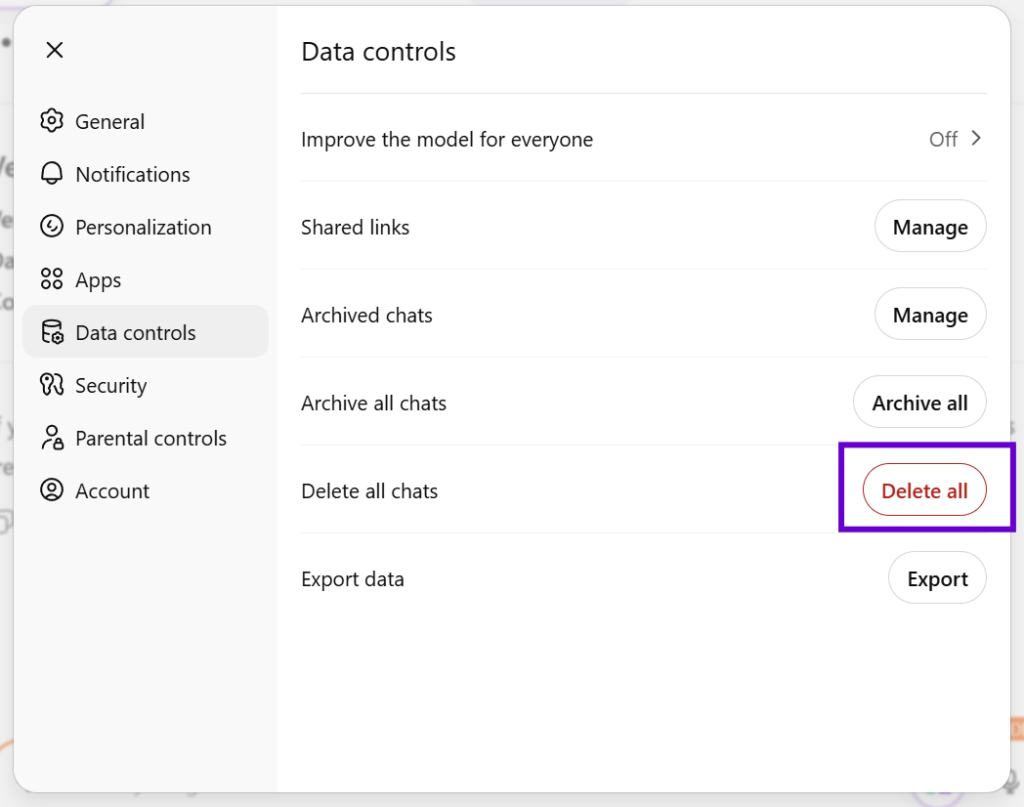
ChatGPT delete all data
Method 2: The Smarter Way with Portable Context
AI Context Flow is a browser extension built on one principle: your AI memory should belong to you, not to any platform.
It also supports Open Context MCP Server built to take your context with you beyond browser i.e. desktop, mobile, CLI or or anything that accepts an MCP connection
Instead of storing your context inside ChatGPT or Claude, AI Context Flow allows you to create a portable context profile that travels with you. Claude, ChatGPT, Gemini, Perplexity, Lovable – it does not matter which platform you open. Your context is always one click away.
Setup Takes Five Minutes
Step 1: Create a memory bucket to hold your ChatGPT context
Go to memory studio → Create memory → Enter a bucket name → Paste the data you got from step 1
Step 2: Add the data from ChatGPT
If you got the plaintext data through the prompt, you can paste it here.
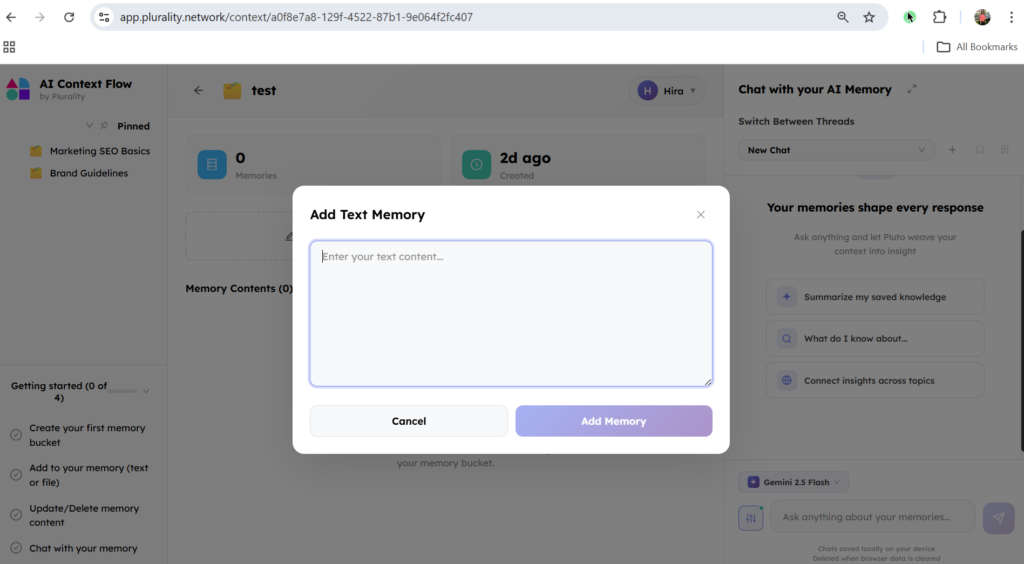
Add context to memory bucket
If you got the .zip archive, you can unzip and upload it as it is and it will pick up all required information
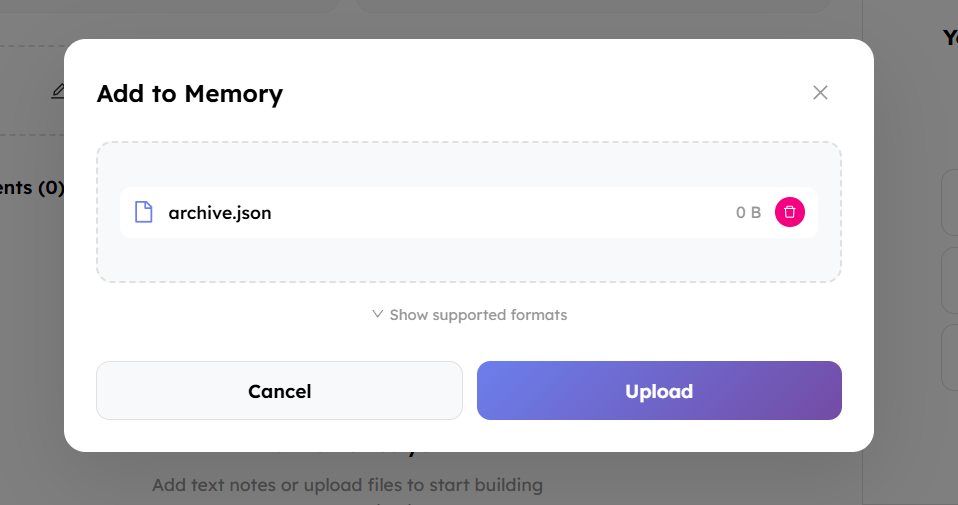
Ipload archive as complete context from ChatGPT
Step 3: Install the browser extension or setup the MCP Server
Now you have a google drive of your context, you can insert it wherever you want. You have two options: either install the browser extension or setup MCP server (which also is very easy: guide here). From that point forward, whenever you open a new conversation on any AI platform you can access your context.
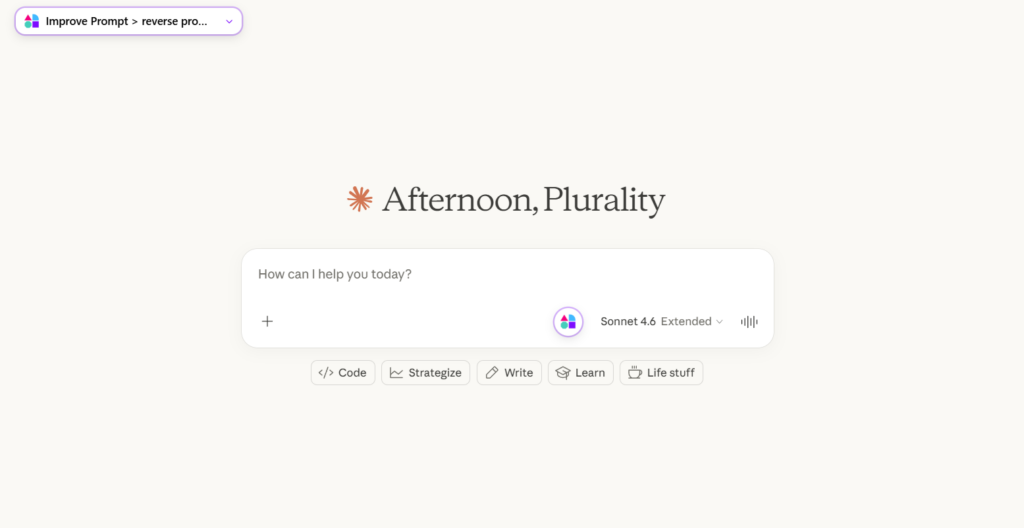
AI Context Flow embeds natively in Claude
You can also decide to use both things in parallel since the browser extension allows you to access your context on any website not just on AI platforms through sidebar.
Since this is like a google drive, you can create multiple buckets for different purposes: one for client work, one for personal projects, one for a specific team – and switch between them in seconds.
Why Use Portable Context?
Why should you bother installing AI Context Flow or setting up MCP? A few reasons below:
Use the Same Context Across Multiple AI Models at Once
Claude is exceptional for long-form writing and reasoning. ChatGPT still leads on image generation and its Deep Research mode. Gemini has real-time web access that the others lack. The most productive AI users do not pick one tool – they use each for what it does best. AI Context Flow makes that possible without rebuilding context every time you switch. Every session, on every platform, starts with your full context already in place.
Use Your AI Memory on Any Website, Not Just AI Chat
Most AI tools require you to navigate to a chat interface, get your output, and then manually apply it somewhere else. AI Context Flow’s sidebar feature changes that.
The sidebar embeds AI assistance directly into whatever website or tool you are already working in – your CMS, your email, your project management tool. Your full AI context travels with you beyond the chat window, available on the page you are actually using.
Connect to Any Tool with MCP Servers
For users who want to go further, AI Context Flow supports MCP (Model Context Protocol) server integration. This connects your AI memory to external tools, agents, and automated workflows outside of the browser entirely – coding assistants, desktop agents, CLI tools, and more.
If you use AI seriously, the manual method is a starting point, not a long-term solution. It will get you from ChatGPT to Claude. But the first time you switch tools mid-project, or start a new chat and have to paste your context in again, you will understand why a portable solution matters.
AI Context Flow is that solution. And using it from day one means you never build the habit of losing your context in the first place.
Start Your Transition Today
Manual route: Run the extraction prompt in ChatGPT, use claude.com/import-memory to transfer your stored memories, set up your Claude Projects or Skills to replace your Custom GPTs, and you are running in under an hour.
Automated route: Install AI Context Flow, paste your extracted context document into your profile, and your AI memory works across every tool and every conversation from that point forward – starting with Claude today
Either way: do not leave your AI context behind. It is one of the most valuable things you have built through your time with ChatGPT. Take it with you.
Exporting your data and setting up Claude is free. Claude Pro costs $20 per month, the same price as ChatGPT Plus. If you cancel ChatGPT Plus after switching, your total cost stays exactly the same.
Will I lose my ChatGPT conversations when I switch?
Not if you export first. Go to ChatGPT Settings → Data Controls → Export Data before closing your account. That said, the raw conversations are rarely what you need. The extraction prompt in Step 1 of this guide pulls out what actually matters in a format you can use immediately.
Does Claude have memory like ChatGPT?
Yes. Claude Pro includes memory that persists across conversations, available on Pro, Max, Team, and Enterprise plans. The key difference is that Claude’s memory is fully visible and editable – you can see exactly what it has stored, correct mistakes, and add information deliberately by going to Settings → Capabilities → View and edit your memory. ChatGPT’s memory is less transparent about what it has retained.
Can I use Claude and ChatGPT at the same time?
Yes, and many users do. The challenge is that your AI context does not carry between them automatically. AI Context Flow solves this by letting you inject the same context profile into both platforms with one click, so neither session starts from scratch.
What is AI Context Flow and how is it different from Claude's built-in memory?
Claude’s built-in memory only works inside Claude. AI Context Flow stores your context independently, outside of any platform, so it works in Claude, ChatGPT, Gemini, Perplexity, and any other AI tool you use. It also includes a sidebar feature that brings AI assistance with your full context into any website, not just chat interfaces.
What is the fastest way to switch from ChatGPT to Claude?
Visit claude.com/import-memory, follow the two-step process to extract and import your ChatGPT memories, and Claude will have your stored context in place. Note that imported memories can take up to 24 hours to fully process. For immediate use, run the extraction prompt from Step 1 of this guide in ChatGPT, copy the output, and paste it directly into a new Claude conversation.
What happens to my ChatGPT Custom GPTs if I switch?
Your Custom GPTs stay in your ChatGPT account even if you cancel Plus. To replicate them in Claude, copy the instructions from each one and create a matching Claude Project: go to claude.ai/projects, click New Project, paste the instructions into the project settings, and upload any reference files. Every conversation in that project will run with those instructions automatically.
Does AI Context Flow work on mobile?
AI Context Flow is currently a browser extension designed for desktop use. However, it has an MCP server that can be added in any MCP-Compatible platform. Check the AI Context Flow documentation for the latest information on platform support.