Connect AI Context Flow to Any Tool With MCP Servers
By Hira • Feb 26, 2026
💡 What’s Covered Inside
This article covers how to add Plurality’s Open Context MCP server with tools like ChatGPT, Claude, Gemini, Lovable, Bolt, Claude Code, GitHub Copilot, and more. The Open Context MCP server allows you to create your context once in the memory studio and then keep using and enriching it from any tool or website.
What is an MCP Server?
A Model Context Protocol (MCP) server is a lightweight connector that gives AI agents and assistants access to external tools, data, and memory through a standardized interface. Rather than every AI platform building its own one-off integrations, MCP provides a universal “plug-in” standard, so that once something is exposed as an MCP server, any compatible AI client can connect to it. For users, this means you can wire your own memory, documents, knowledge bases, or tools directly into the AI assistants you already use, letting them work with your personal context instead of starting from scratch every time.
Plurality’s Open Context MCP
AI Context Flow is built on top of the Open Context layer: a user-owned, portable memory layer that stores your context, documents, and notes in a way that travels with you across AI platforms and websites. While the browser-based experience handles context flowing between websites and AI tools automatically, Plurality’s Open Context MCP extends that reach further.
It acts as a connector to the Open Context layer for any environment outside the browser e.g. desktop agents, CLI tools, coding assistants, or any agent that supports MCP. Plurality’s Open Context MCP is an OAuth-secured MCP server that gives any compatible AI client (Claude Code, Claude Desktop, ChatGPT, Cursor, and more) full read and write access to your Plurality memory, including your documents, notes, and files stored across memory buckets, keeping your context portable, private, and always within reach.
What Operations are Possible?
When you connect Plurality’s Open Context MCP to another tool, you get access to the following operations:
Tool
Description
get_user_memory_buckets
List all memory buckets (AI profiles) for the user
list_items_in_memory_bucket
List stored items in a specific bucket (metadata only)
search_memory
Semantic search across buckets with relevance scoring
read_context
Read the full content of a stored item with pagination
save_memory
Save text content to a specific memory bucket
save_conversation
Save a conversation (chat history) to a memory bucket
create_memory_bucket
Create a new memory bucket for organizing saved content
MCP Integration with Tools
MCP can be added to different tools in different ways. Here we discuss different tools and how to connect them to Plurality’s Open Context MCP (or any other MCP server).
ChatGPT
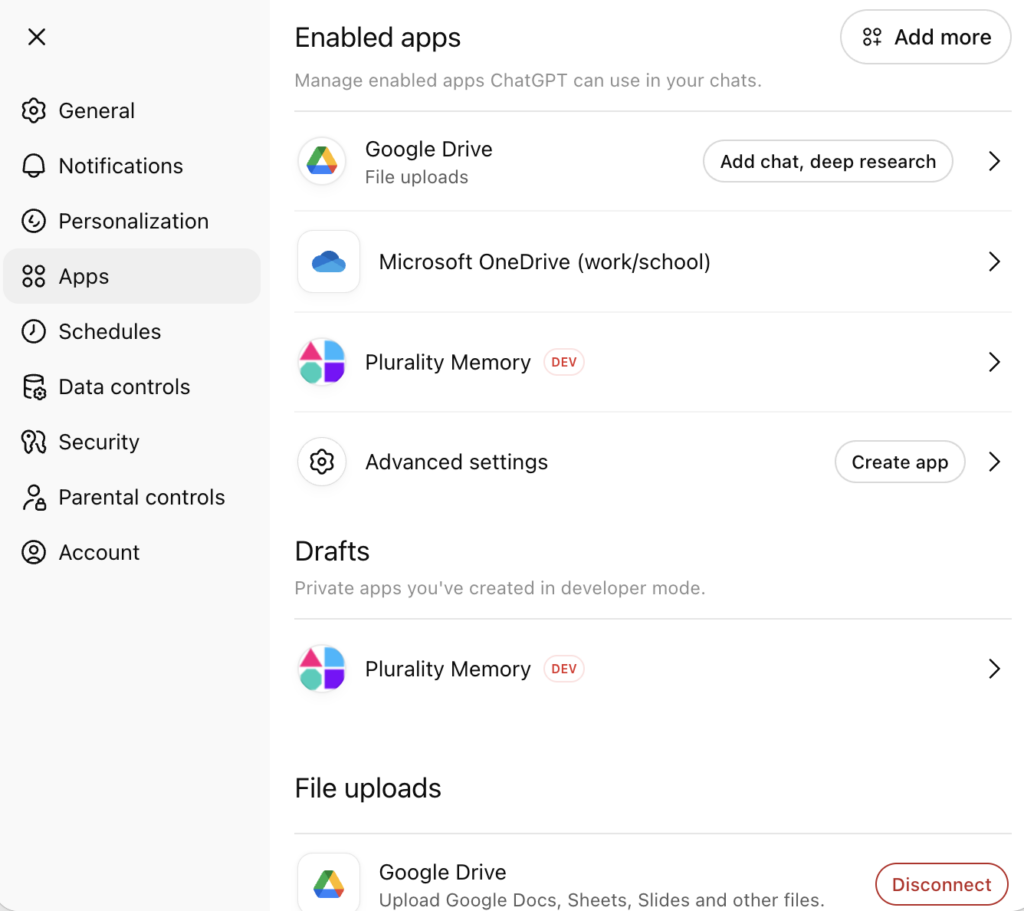
Open Settings → Apps → Create app
Enter a name (e.g. “Plurality Memory”) and paste https://app.plurality.network/mcp as the URL
Save the connector and ChatGPT will discover the OAuth metadata automatically
On first use in a chat, ChatGPT opens a browser window for OAuth login
After authenticating, the memory is now available in your conversations
To add MCP server, developer Mode must be enabled by a workspace admin under Settings → Admin → Developer Mode.
ChatGPT MCP Connector
Claude Desktop / Web
Claude supports MCP integration on both free and paid plans, albeit in different ways.
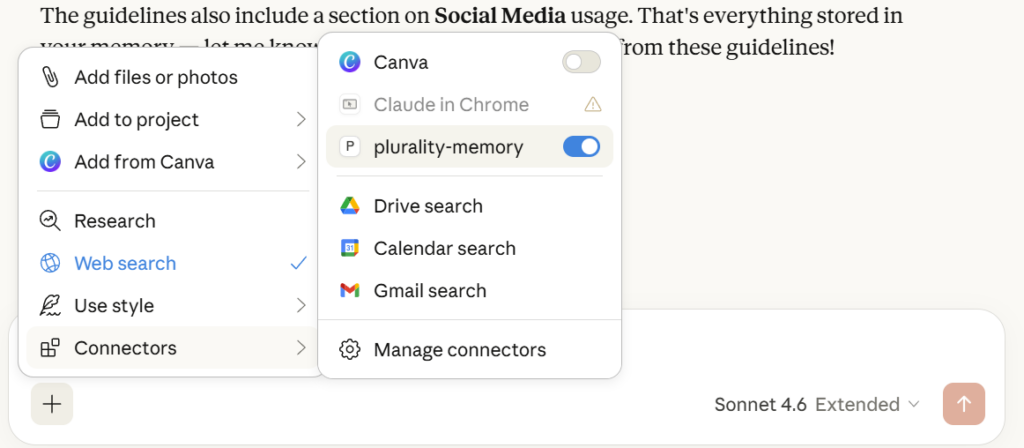
Claude opens a browser window for OAuth login where you must sign in with your Plurality account
Once authenticated, the Plurality tools appear in the chat input
Development mode (free plan — Desktop app only):
Free-plan users can connect the Desktop app via the mcp-remote bridge by editing the config file directly. This does not work with the web app , only the native Desktop app reads this config.
Project-level setup: create .cursor/mcp.json in your project root with the same content above. After saving the config, restart Cursor. Navigate to Settings → MCP to verify the server shows a green active status. On first use, Cursor will open your browser to complete OAuth authentication with your Plurality account.
Open the Cascade panel, the Plurality Open Context MCP tools will be available to the AI agent.
On first use, Windsurf will open your browser for OAuth login.
LM Studio
LM Studio supports MCP from version 0.3.5 onward, allowing locally-running models to call external tools like Plurality’s Open Context memory.
Open LM Studio and navigate to the Developer tab (enable it in Settings → Advanced if not visible)
Click Add MCP Server
Enter the server URL: https://app.plurality.network/mcp
Give it a label, e.g. Plurality Open Context
LM Studio will perform the OAuth handshake — authenticate in the browser window that opens
Switch to the Chat tab, start a session with any loaded model, and enable tools in the chat toolbar
MCP tool calling performance depends on the local model’s instruction-following capability. Models fine-tuned for tool use (e.g. Mistral, Llama 3.1+, Qwen2.5) will get the best results.
Lovable
Lovable supports MCP integration (on its paid plan) directly within its builder environment, letting your AI-generated apps read and write to your Plurality memory as part of the build process.
Open your Lovable project
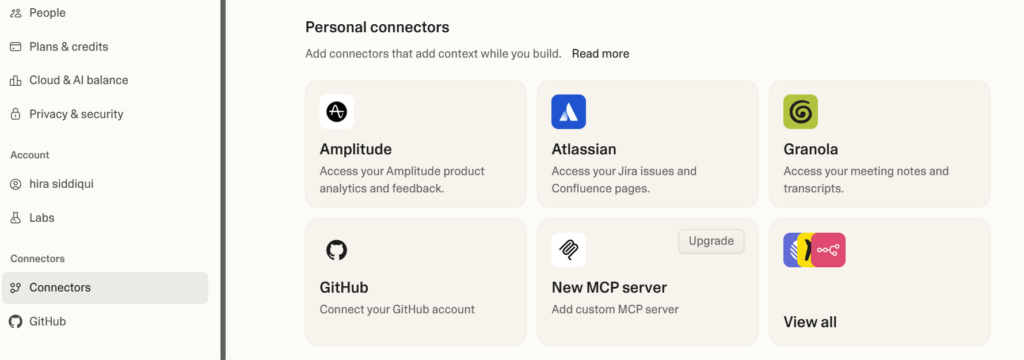
Navigate to Settings → Connectors → Personal Connectors → New MCP Servers
Click Connect MCP and paste https://app.plurality.network/mcp
Authenticate via the OAuth flow that opens in your browser
Once connected, you can reference your Plurality memory and documents directly in Lovable prompts
This is particularly powerful for building personalized apps as your context, documents, and notes become live data sources for whatever you’re building.
Lovable MCP configuration
Replit
Open a Replit project and start the Agent
Click the Tools icon in the agent panel
Select Add tool → MCP Server
Enter https://app.plurality.network/mcp and confirm
Complete the OAuth authentication in the browser prompt
Plurality Open Context tools are now available to the agent when generating or editing your code
Other MCP Clients
Any MCP client that supports streamable HTTP transport and OAuth2 with Dynamic Client Registration (DCR) can connect by pointing to: https://app.plurality.network/mcp
Your Memory, Your Rules
Most AI tools treat your context as ephemeral i.e. useful for this session, gone by the next. Plurality flips that. With Plurality’s Open Context MCP, your memory is a first-class, portable asset that moves with you: from your browser to your IDE, from a chat assistant to a coding agent, from one platform to another.
Write once. Remember everywhere. That’s the point.
Plurality’s Open Context MCP is an OAuth-secured MCP (Model Context Protocol) server that connects any compatible AI tool to your Plurality memory layer. It gives tools like ChatGPT, Claude, Cursor, and GitHub Copilot read and write access to your documents, notes, and conversation history stored in Plurality.
Which AI tools are compatible with Plurality's Open Context MCP?
Any AI tool that supports MCP with streamable HTTP transport and OAuth2 with Dynamic Client Registration (DCR) can connect. Currently supported tools include ChatGPT, Claude Desktop, Claude Code, GitHub Copilot (VS Code), Cursor, Windsurf, LM Studio, Lovable, and Replit.
Do I need to install anything to connect Plurality's Open Context MCP?
For most tools (ChatGPT, Claude paid plans, Cursor, Windsurf, Lovable, Replit), no installation is required. You just provide the server URL and authenticate. For Claude Desktop on a free plan, you’ll need Node.js installed to run mcp-remote.
Does Plurality's Open Context MCP work with free plans?
It depends on the tool. Claude Desktop (free plan) supports it via the mcp-remote config method. ChatGPT requires a paid plan (Plus, Pro, Team, Enterprise, or Edu). GitHub Copilot requires a paid subscription. For most coding tools like Cursor, Windsurf, and LM Studio, no paid plan is required for MCP support.
What is a memory bucket?
A memory bucket is an organized container within your Plurality memory layer. You can think of it as a folder for a specific AI profile, project, or context. It can store documents, notes, conversations, and files that are relevant to that use case. You can create as many buckets as you need and control which tools have access to them.
What is the Open Context layer?
The Open Context layer is the underlying memory infrastructure that Plurality’s Open Context MCP connects to. It’s a user-owned, portable memory store where your context, documents, and notes live. Unlike platform-specific memory features (e.g. ChatGPT’s memory or Claude’s Projects), Open Context is not tied to any single AI tool. It travels with you across all compatible platforms.
Is my data private when using Plurality's Open Context MCP?
Yes. Authentication is handled via OAuth2, meaning no AI tool ever handles your Plurality credentials directly. Each tool is granted access only after you explicitly authorize it through a browser-based login flow. Tokens are cached locally on your device.
Can multiple AI tools access the same memory at the same time?
Yes. Because all tools connect to the same Open Context layer, they all read from and write to the same memory buckets. This means context you save in Cursor is immediately available in Claude or ChatGPT without any manual syncing.
Does Plurality's Open Context MCP work with local models?
Yes, via LM Studio (version 0.3.5 or later). LM Studio lets locally-running models call external MCP tools, including Plurality’s Open Context MCP. Performance depends on the local model’s ability to follow tool-calling instructions. Models like Mistral, Llama 3.1+, and Qwen2.5 work best.
Why is Plurality's Open Context MCP not showing up after I add it?
The most common cause is not fully restarting the tool after adding the config. For Claude Desktop and Cursor, a full quit-and-reopen (not just closing the window) is required. For VS Code, try reloading the window. Also confirm the server URL is exactly https://app.plurality.network/mcp with no trailing slash or extra characters.
How is this different from ChatGPT memory or Claude's Projects feature?
Platform-native memory features are siloed. ChatGPT’s memory only works in ChatGPT, and Claude’s Projects only work in Claude. Plurality’s Open Context layer is platform-agnostic: the same memory is accessible from every tool you connect, and you own the data regardless of which platform you’re using.